Response Validation Google Forms: Rules, Regex and Examples
Response validation in Google Forms checks answers before submit. See every rule by question type, tested regex for email, phone and ZIP codes, and fixes for common mistakes.
Response validation in Google Forms is a rule attached to a question that stops someone from submitting an answer that doesn’t fit, such as an email without an @ or a number outside a range. To turn it on, click the question, click More (the three dots at the bottom right of the question card), choose Response validation, then pick a rule and, if you want, write a custom error message (Google Docs Editors Help).
The rules you can pick depend on the question type. Short answer, paragraph and checkboxes questions each have their own list, covered below with regex examples we tested and the mistakes that most often block respondents.
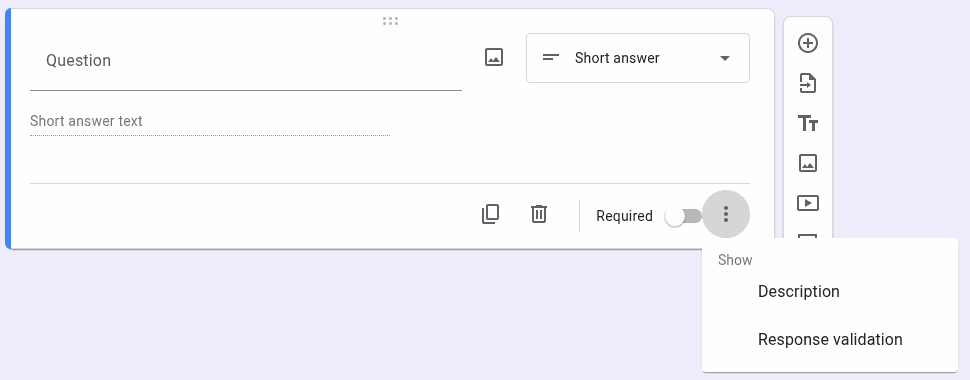
How to turn on response validation in Google Forms
These steps follow Google’s help page How to set rules for your form:
- Open your form in Google Forms.
- Click Add to create a question, or click an existing one.
- To the right of the question title, choose the question type, for example Short answer.
- Click More, the three dots at the bottom right of the question.
- Click Response validation.
- Select the type of rule first, then its options. The options available depend on the question type.
- Optional: enter a message in the Custom error text field. Responders see it when their answer doesn’t follow the rule.
Before sharing the form, open the preview, submit a wrong answer on purpose and check that your message appears. Then submit a valid answer and make sure it goes through.
Response validation rules by question type
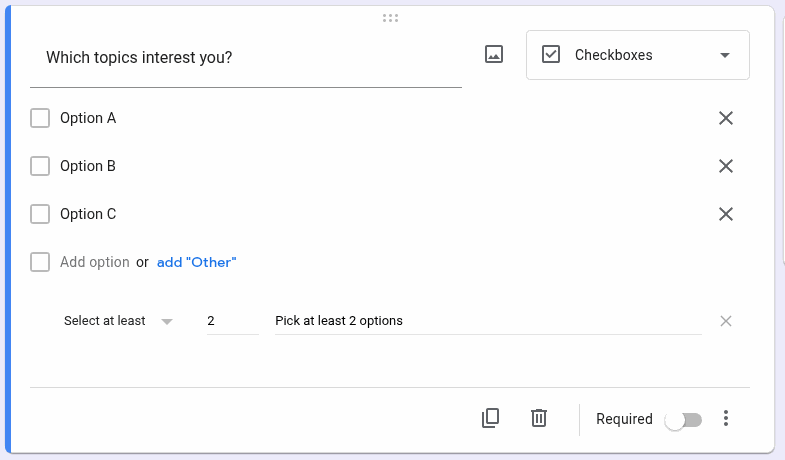
Google’s help page documents the rules for short answer and paragraph questions (source); the checkboxes rules below are the options shown in the Google Forms editor (see the screenshot).
| Question type | Rule | What it checks | Example |
|---|---|---|---|
| Short answer | Number | The answer is a number that meets a condition | A number between 21 and 42 |
| Short answer | Text | The answer contains certain text, or is in email format | Contains the word “candy” |
| Short answer | Length | A maximum or minimum character count | At most 500 characters |
| Short answer | Regular expression | The answer fits a pattern | A 10-digit phone number |
| Paragraph | Length | A maximum or minimum character count | At most 200 characters |
| Paragraph | Regular expression | The answer fits a pattern | A 10-digit phone number |
| Checkboxes | Select at least / at most / exactly | How many boxes are checked | Select at least 2 |
Short answer questions
Short answer questions have the most options. Use them for anything with a predictable format.
- Number: pick a condition such as greater than or equal to, or between, then the value. Good for an age, a quantity or a year.
- Text: require that the answer contains a word, or choose the email option so only answers in the
text@example.comformat pass. - Length: set a maximum or minimum character count. The limit counts characters, not words.
- Regular expression: choose Contains, Doesn’t contain, Matches or Doesn’t match, then enter a pattern.
The email option only checks the format. It can’t tell whether the mailbox exists, which is what our guide on how to validate email addresses covers.
Paragraph questions
Paragraph questions offer Length and Regular expression. Length is the common choice, for example a minimum count so open answers aren’t one word, or a maximum so they stay readable.
Checkboxes questions
In the Google Forms editor, checkboxes questions have three rules:
- Select at least: a minimum number of boxes that must be checked.
- Select at most: a maximum number of boxes that can be checked.
- Select exactly: the exact number of boxes that must be checked.
“Pick the three features you use most” is a typical case for Select exactly 3. In the example below, Select at least 2 with the error text “Pick at least 2 options” makes sure nobody ticks a single box.
Grid questions
Multiple choice grid and checkbox grid Google Forms questions don’t use the Response validation menu. Instead, Google offers Require a response in each row, and under More, Limit to one response per column and Shuffle row order. Dropdowns don’t get it either; to add a dropdown in Google Forms and see what it can and can’t check, read our step-by-step guide. If you’re still deciding which type fits a question, see our guide to different question types in forms. For rating questions, see how the linear scale in Google Forms works.
Contains, Doesn’t contain, Matches, Doesn’t match
The regular expression rule asks you to pick one of four conditions before the pattern. Google lists them but doesn’t define each one in detail, so here is the practical difference.
- Contains: the pattern must appear somewhere in the answer.
- Doesn’t contain: the pattern must not appear anywhere, for example
[0-9]to refuse digits in a name. - Matches: the answer must fit the pattern.
- Doesn’t match: the answer must not fit the pattern.
The safest habit is to anchor every pattern with ^ at the start and $ at the end. Google’s help explains that ^ means the answer starts with what follows and $ means it ends with what precedes. With both, the pattern describes the whole answer, whichever condition you pick. In our test, the unanchored pattern [0-9]{5} was found inside “abc123456”, while the anchored version rejected it.
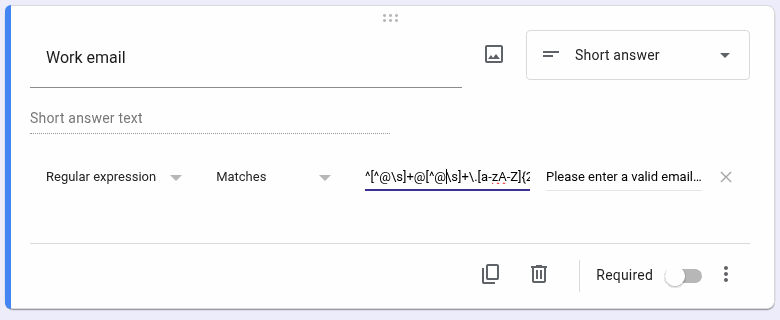
In this example, the full pattern is ^[^@\s]+@[^@\s]+\.[a-zA-Z]{2,}$ with the condition Matches. The field is too narrow to show it all, so check the whole pattern after pasting.
Regex examples for Google Forms response validation
We tested every pattern below with a short script against the sample answers in the table, on October 22, 2026. Use them with Matches on a short answer question, then check them again in your form’s preview.
| What you want | Pattern | Accepted | Rejected |
|---|---|---|---|
| Email format | ^[^@\s]+@[^@\s]+\.[a-zA-Z]{2,}$ | jane@example.com, j.doe+news@mail.co.uk | not-an-email, jane@example, jane@example.c |
| Email from one domain | ^[A-Za-z0-9._%+-]+@yourcompany\.com$ | jane@yourcompany.com | jane@gmail.com |
| 10-digit phone, digits only | ^[0-9]{10}$ | 5551234567 | 555-123-4567 |
| US phone, common formats | ^\(?[0-9]{3}\)?[-. ]?[0-9]{3}[-. ]?[0-9]{4}$ | (555) 123-4567, 555.123.4567 | 555-1234 |
| US ZIP code, +4 optional | ^[0-9]{5}(-[0-9]{4})?$ | 12345, 12345-6789 | 1234, 12345-67 |
| Whole number | ^[0-9]+$ | 42 | 4.2, -3 |
| Order code like AB-1234 | ^[A-Z]{2}-[0-9]{4}$ | AB-1234 | ab-1234, AB1234 |
| Link starting with https | ^https://\S+$ | https://example.com/page | example.com |
| Date as YYYY-MM-DD | ^[0-9]{4}-[0-9]{2}-[0-9]{2}$ | 2026-10-22 | 22/10/2026 |
The 10-digit phone and ZIP code patterns come from Google’s own examples, with anchors added. The date pattern only checks the format, so 2026-13-45 would pass. Formats are not proof either: a valid-looking phone number can still be wrong.
Two rules from Google’s regex reference prevent most errors (source):
- Escape special characters: put a backslash before a character that means something in regex, such as
\$for a dollar sign or\.for a literal dot. - Use character ranges:
[a-z],[A-Z]and[0-9]match one character in the range, and can be combined as[a-zA-Z0-9].
Writing custom error text that helps
Google lets you write custom error text for each rule, and responders see it when their answer breaks the rule. Name the expected format and give an example:
- Instead of “Invalid”, write “Enter 10 digits with no spaces, for example 5551234567.”
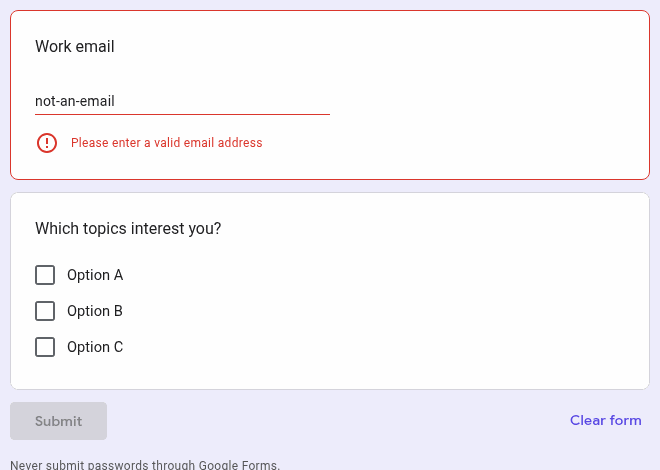
- Instead of “Wrong format”, write “Please enter a valid email address”, as in the example below, or name the domain you expect.
- Instead of “Too long”, write “Keep your answer under 500 characters.”
Limits and common mistakes
Response validation is a format check, which explains most of its limits.
- Only some question types have it. Google documents rules for short answer and paragraph questions, the editor also offers them for checkboxes, and grids have the settings above.
- Format is not accuracy. A correctly formatted email or ZIP code can still be mistyped or fake. For data collection forms where accuracy matters, plan a review step after submission.
- Patterns without anchors. Without
^and$, a pattern can accept a longer answer that only contains a valid part. - Rules that block real answers. A strict phone pattern can reject international numbers or spaces. Google advises responders to contact the form owner when a validation rule is incorrect or doesn’t let them submit the required information (Google Docs Editors Help).
- Unclear error text. Responders can’t click Next while a validation error is unresolved, according to the same help page, so a vague message stops them on the spot.
- Expecting validation on dates and files. Date questions follow a format based on the respondent’s account or browser language, such as MM/DD/YYYY or DD/MM/YYYY. File upload questions have their own limits on number, type and size; see our guide to Google Forms file uploads. If you need checks Google Forms doesn’t offer, compare the options in our list of Google Form alternatives.
FAQ
Where is response validation in Google Forms?
Click the question, then More, the three dots at the bottom right of the question card, then Response validation. If it isn’t there, check the question type: it’s available for short answer, paragraph and checkboxes questions.
Can Google Forms validate an email address?
Yes. On a short answer question, choose the Text rule and the email option. It checks that the answer is in the format text@example.com, not that the mailbox exists.
How do I limit the number of checkboxes someone can select?
On a checkboxes question, open Response validation and choose Select at most or Select exactly, then enter the number.
Can I use regex in Google Forms?
Yes. On a short answer or paragraph question, choose Regular expression, pick Contains, Doesn’t contain, Matches or Doesn’t match, and enter the pattern.
Why can’t respondents submit my form?
Usually a required question is empty or an answer breaks a validation rule. Google’s help notes that responders can’t move on with an unresolved validation error, so test each rule in preview before sharing the form.