Multiple Choice Grid Google Forms: How to Add, Rate Rows and Read Answers
Multiple choice grid in Google Forms is a rows×columns table with one radio answer per row. Learn how to add one, set its options, read responses and when to use checkbox grid or linear scale instead.
A multiple choice grid in Google Forms is a question laid out as a table: you write rows (the items) and columns (the answer options), and respondents pick exactly one column per row with radio buttons. To add one, click Add question, open the question-type menu to the right of the question title, choose Multiple choice grid, then fill in your rows and columns (Google Docs Editors Help).
Three optional settings control it: Require a response in each row, Limit to one response per column and Shuffle row order (Google Docs Editors Help).
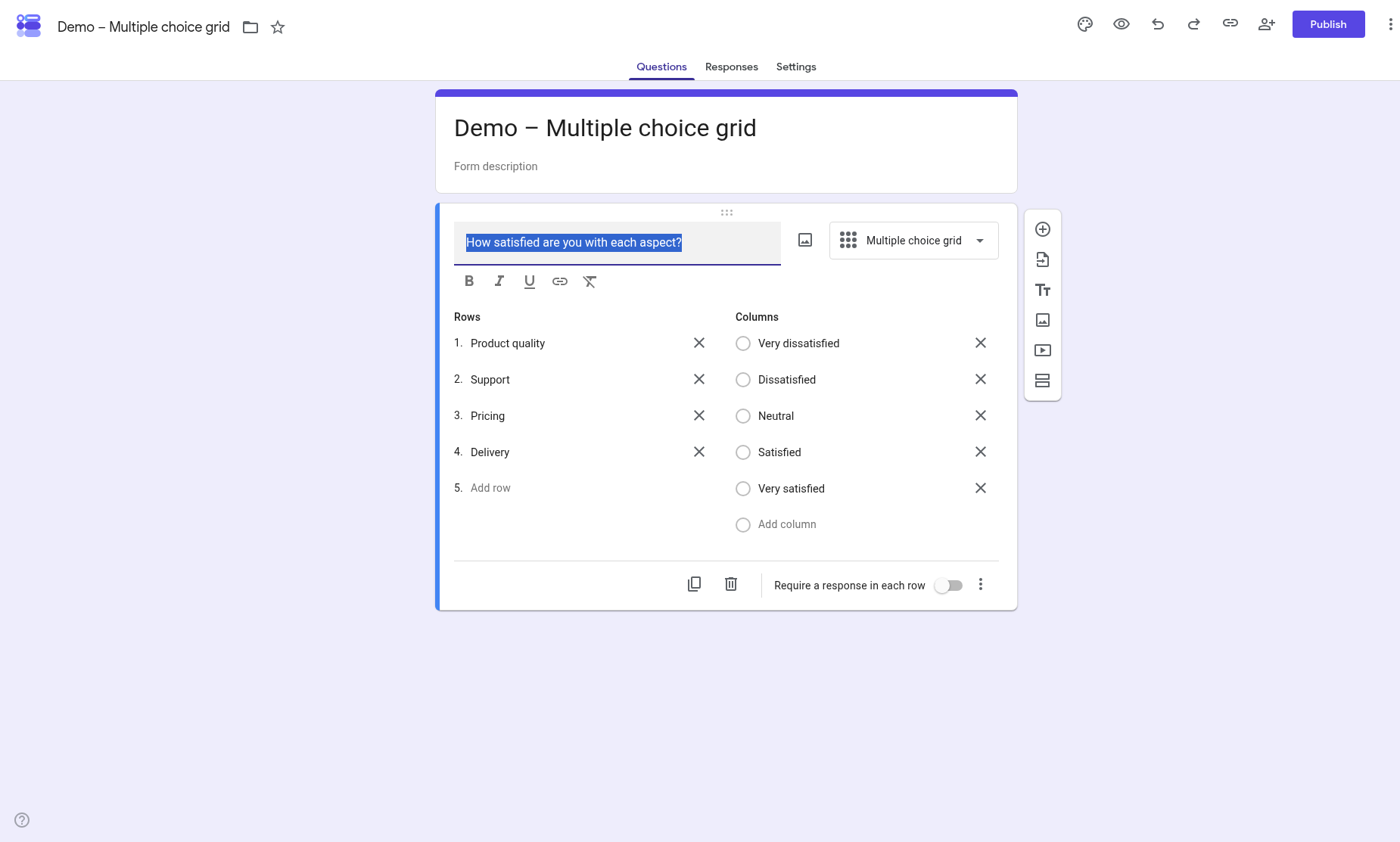
Quick answer
- Open a form in Google Forms.
- Click Add question (the plus icon on the right).
- To the right of the question title, open the question-type menu and choose Multiple choice grid.
- Under Rows, add one item per line (for example: Product A, Product B, Product C).
- Under Columns, add the shared answer options (for example: Poor, Fair, Good, Excellent).
- Optional: turn on Require a response in each row in the question footer.
- Optional: open More (⋮) for Limit to one response per column and Shuffle row order.
These steps follow Google’s instructions for grid questions (Google Docs Editors Help).
What a multiple choice grid is
A multiple choice grid combines two ideas from other question types:
- Rows are the things you’re asking about — products, services, sessions or statements.
- Columns are the same answer set for every row — satisfaction levels, frequency labels or ranks.
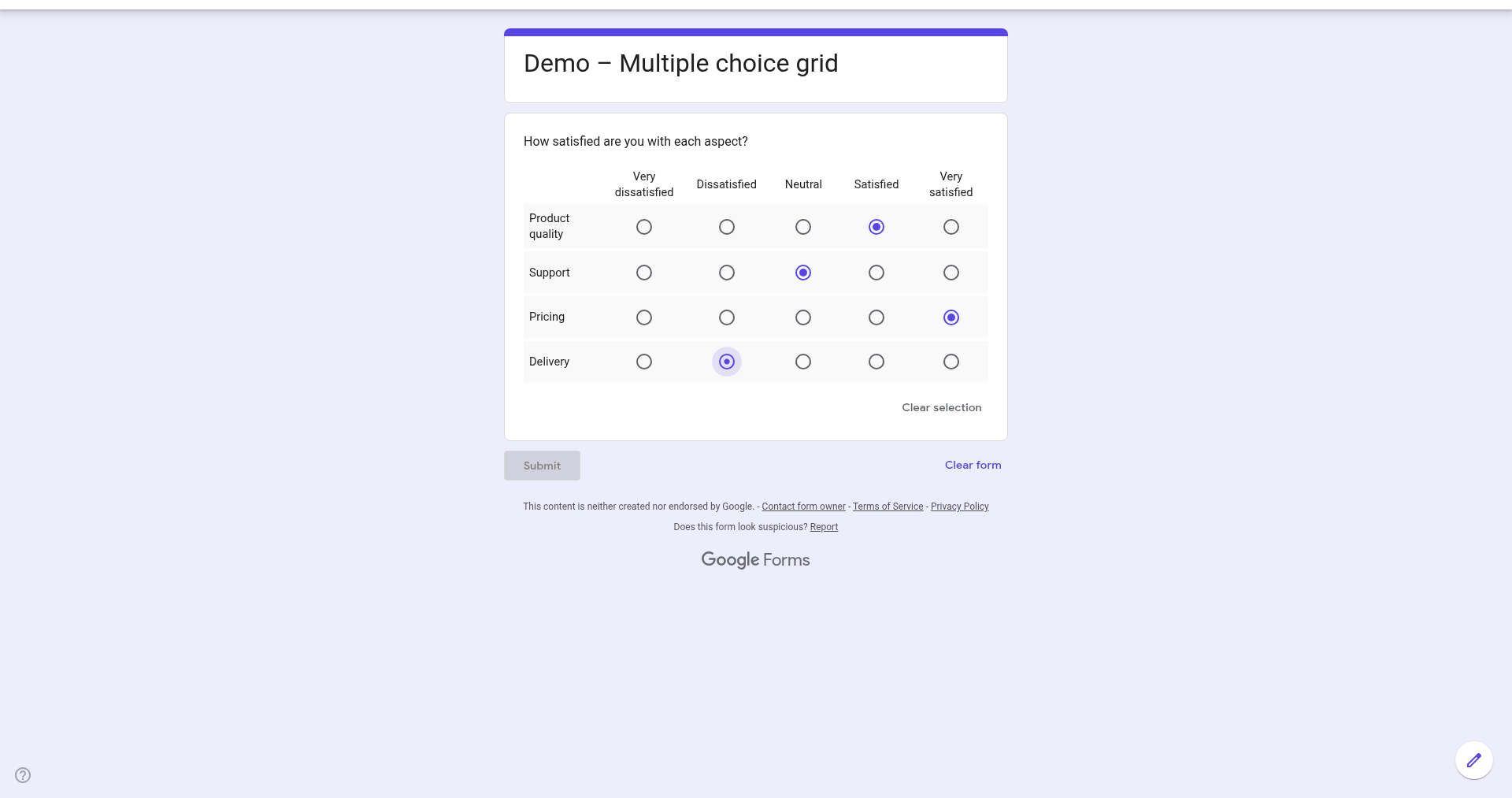
- Each cell is a radio button, so a respondent can choose only one column in each row.
Google’s rules page states that in multiple choice grid questions responders can only choose one column per row (Google Docs Editors Help). That matches the radios in the editor.
One wording conflict: Google’s question-type page currently says a multiple choice grid lets responders select “one or more answers per row” — the same sentence it uses for checkbox grid (Google Docs Editors Help). Treat that as a copy-paste slip. The rules page and the radio controls both show one answer per row.
In survey design this layout is usually called a matrix question. For when a matrix helps and when it hurts, see how to use a matrix question effectively. For every format, see the types of survey questions.
How to add a multiple choice grid in Google Forms
- Open your form in Google Forms.
- Click Add question (the plus icon in the floating toolbar on the right).
- Type your question in the Question field, for example “How satisfied are you with each of the following?”.
- To the right of the question title, open the question-type menu and choose Multiple choice grid.
- Under Rows, add one item per line.
- Under Columns, add the options that apply to every row. Keep them parallel (all satisfaction levels, or all frequency labels — not a mix of unrelated labels).
- Optional: turn on Require a response in each row in the question footer, at the bottom of the card.
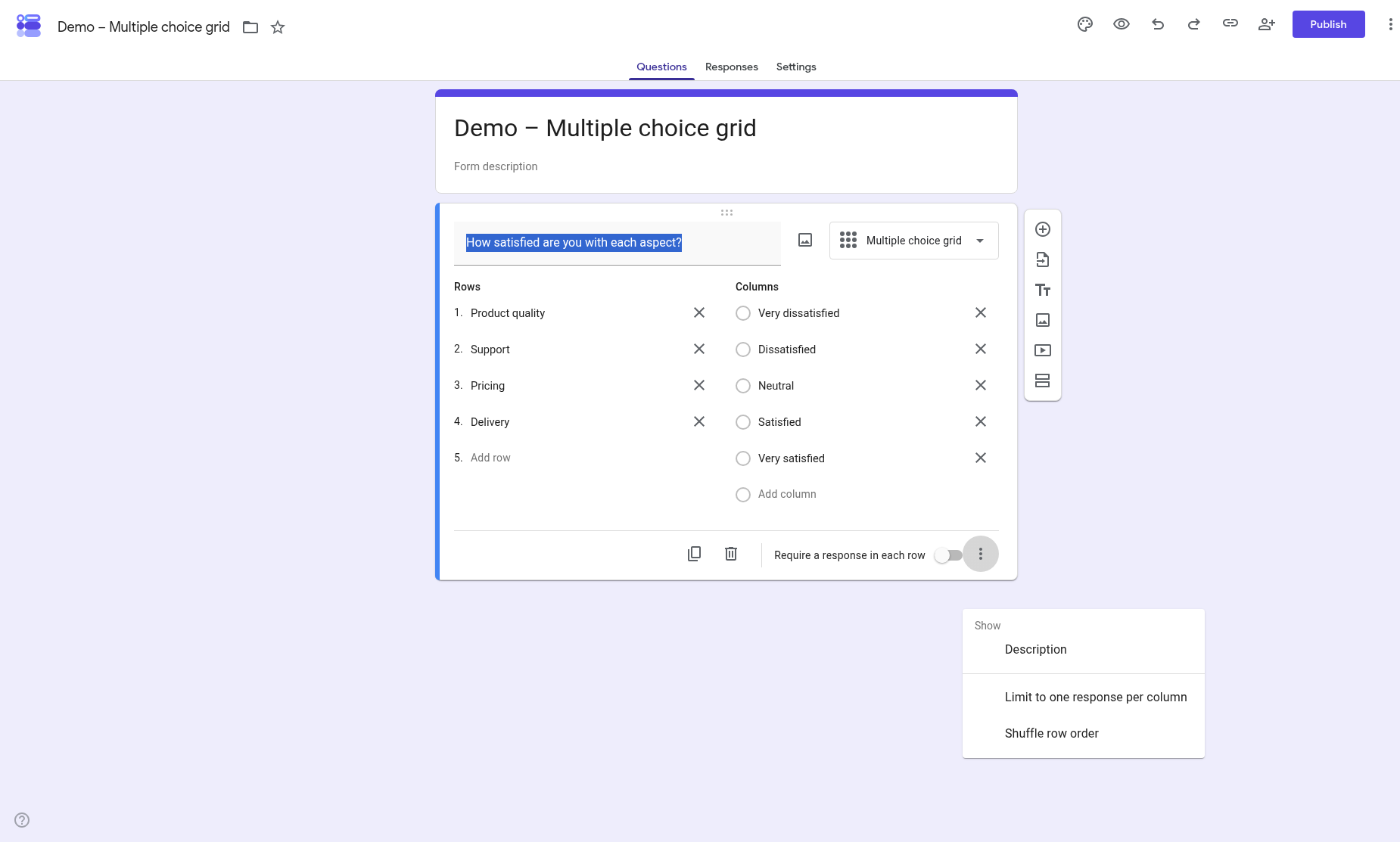
- Optional: click More (⋮, bottom right). The menu includes Show > Description, Limit to one response per column and Shuffle row order.
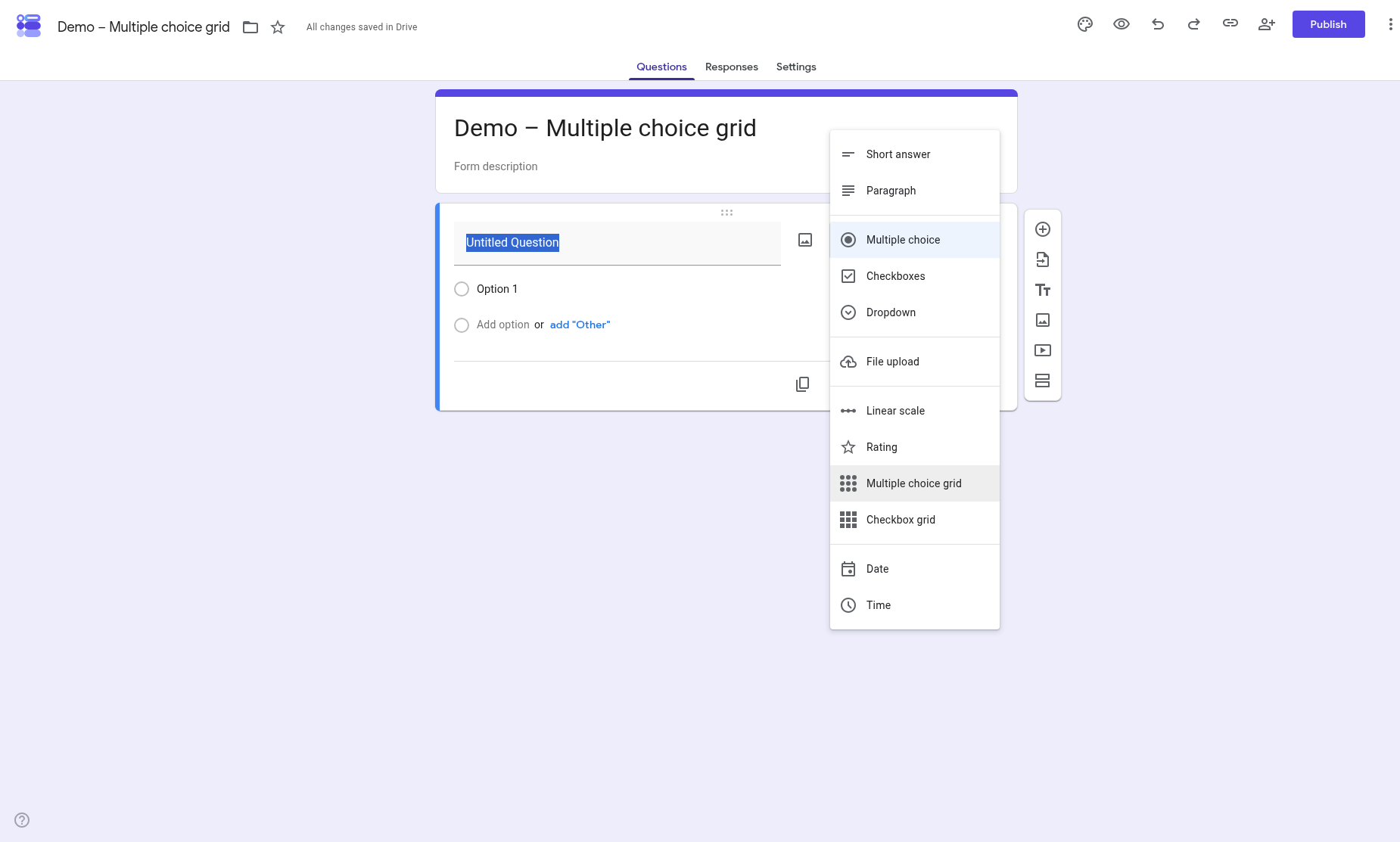
Multiple choice grid options
Google documents three options for grid questions (Google Docs Editors Help).
Require a response in each row
Turn on the Require a response in each row toggle in the question footer. It isn’t in the ⋮ menu. If a respondent leaves a row empty, they get an error and can’t continue.
Use it when every row matters. Leave it off when some rows may not apply — otherwise people pick a middle option just to move on. If “doesn’t apply” is a real answer, add an N/A column instead of forcing a rating.
Limit to one response per column
Click More (⋮), then check “Limit to one response per column”. Each column can then be chosen in only one row. With rows A, B, C and columns 1, 2, 3, respondents assign one row item to each column. Picking the same column in several rows triggers an error.
Useful for forced rankings. Preview carefully when you also require every row: more required rows than columns can block submitters.
Shuffle row order
Click More (⋮), then check “Shuffle row order”. Rows appear in a different order each time someone opens the form. Leave it off when order carries meaning (steps, a list people expect top to bottom).
Multiple choice grid vs checkbox grid
Both use the same rows-and-columns layout and the same three options. The difference is in each cell: radios vs checkboxes.
| Multiple choice grid | Checkbox grid | |
|---|---|---|
| Answers per row | One | One or more |
| Control in each cell | Radio button | Checkbox |
| Typical use | Rating or a single level per row (satisfaction, frequency, priority) | “Which of these apply?” per row (availability, features, skills) |
| Require a response in each row | Yes | Yes |
| Limit to one response per column | Yes | Yes |
| Shuffle row order | Yes | Yes |
Sources: Choose a type of question for your form and How to set rules for your form. The “typical use” row is editorial advice.
As noted above, the question-type page reuses “one or more answers per row” for both grids; the rules page is clearer for multiple choice grid. For the multi-select version, use the checkbox grid in Google Forms. If you only need one answer from a long flat list (not a matrix), add a dropdown in Google Forms.
When to prefer a linear scale
A multiple choice grid fits when several items share the same answer set. A linear scale in Google Forms is better when you rate one thing on a numeric scale (for example 1–5).
Prefer a linear scale for a single statement or experience and a clean numeric scale. Prefer a multiple choice grid when the same labeled scale applies to many items, when columns aren’t pure numbers (Rarely / Sometimes / Often), or when you need Limit to one response per column for exclusive ranking.
How multiple choice grid responses appear
In the Responses tab. Open the form and click Responses at the top. The Summary view only appears once there’s at least one response; you can also view responses by question or by person (Google Docs Editors Help).
In Google Sheets or CSV. In Responses, click Link to Sheets, or More → Download responses (.csv) (Google Docs Editors Help). Google’s Help doesn’t document the exact column layout for grid answers, so submit a test response from Preview and check the linked sheet before you build formulas on it.
Limits
No response validation on this question type. Google’s rules page covers Response validation for short answer and paragraph (and checkbox validation elsewhere); for multiple choice grid it documents the three options above, not Response validation (Google Docs Editors Help). You can’t set “select at most 2” here — and for per-row count you don’t need to, because radios already enforce one column per row. For other patterns, see response validation in Google Forms, or split the matrix into separate questions.
No “Other” free-text cell. Google’s Help mentions “Other” for multiple choice and checkboxes, not for grids (Google Docs Editors Help). Add a follow-up short-answer question if you need comments.
Long grids on mobile. Wide tables are harder on a phone. Keep column labels short and split very long row lists into two questions or sections.
Common mistakes
- Too many rows. Long matrices tire people out and invite patterned clicking. Split the list or drop rows that don’t change a decision.
- Columns that aren’t parallel. Mixing “Yes”, “Weekly” and “N/A” confuses analysis — unless N/A is a deliberate escape hatch on an otherwise consistent scale.
- Requiring every row when rows don’t apply. That forces fake ratings. Add N/A or leave the question optional.
- Using a multiple choice grid when several answers per row are valid. Availability or “features you use” belongs in a checkbox grid in Google Forms.
- Limiting to one response per column with more required rows than columns. Respondents can get blocked. Test in Preview.
- Expecting Response validation. It isn’t offered here; use the grid options or another question type.
FAQ
How many answers can someone pick per row?
One. Google’s rules page says responders can only choose one column per row, and the editor uses radio buttons (Google Docs Editors Help). For several answers per row, use a checkbox grid.
How do I make every row required?
Turn on Require a response in each row on the question card footer. Empty rows show an error and block continue (Google Docs Editors Help).
What does “Limit to one response per column” do?
Each column can be selected in only one row — the usual setup for a forced ranking. Choosing the same column in more than one row shows an error (Google Docs Editors Help).
Can I add response validation to a multiple choice grid?
No. Use Require a response in each row, Limit to one response per column, or another question type. Patterns for types that do support it are in response validation in Google Forms.
How do answers look in Google Sheets?
Click Link to Sheets in Responses, or download a CSV (Google Docs Editors Help). Google’s Help doesn’t document the exact grid layout, so submit a test response and check the sheet before you rely on formulas.
Sources: Google Docs Editors Help: Choose a type of question for your form, How to set rules for your form, View & manage form responses. Checked November 2, 2026.